
Cronus Zen Basics
The Cronus Zen is a small USB device that sits between your controller and your console/PC. Your console sees it as a normal controller. The Zen translates your button presses and runs scripts (like Auto-Green or Anti-Recoil) to help you win.
Source: Official Cronus Zen Quick Start Guide
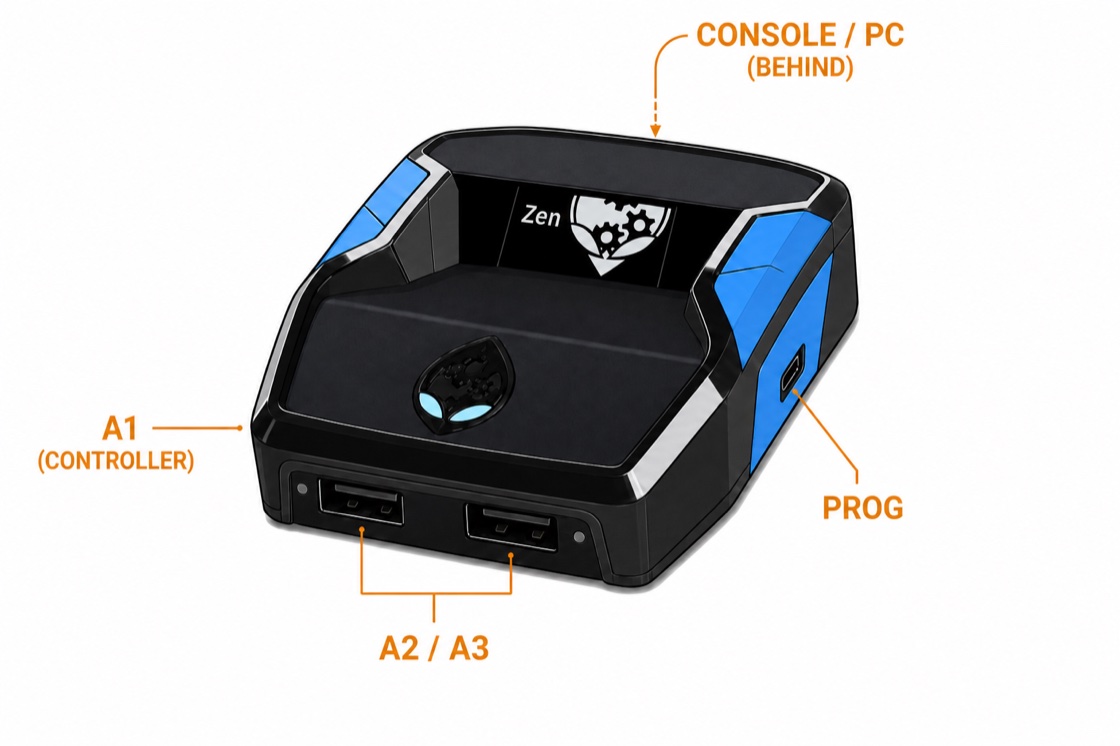
The 4 USB Ports (Very Important!)
Plugging cables into the wrong ports is the #1 reason the Zen doesn't work. Memorize these:
- Back Port (CONSOLE/PC): USB-C port on the back of the Zen. This plugs into your PlayStation, Xbox, or PC. This is how you play the game.
- Left Port (A1): Your main controller MUST plug in here. This is how the Zen talks to your controller.
- Front Ports (A2 / A3): Used for keyboards, mice, or secondary controllers.
- Right Port (PROG): This is ONLY used for plugging into your PC to load scripts using Zen Studio. NEVER leave this plugged in while playing a game.
How to Hard Reset
If your Zen screen freezes, goes black, or stops responding, you need to hard reset it. This will NOT delete your scripts.
1
Unplug all cables from the Zen.
2
Turn the Zen upside down.
3
Press and hold the small blue button on the bottom for 10 seconds.
4
Plug it back in. It should work normally now.