
Quick Start Guide — Cronus Zen
Get your Cronus Zen game-ready with your favorite console in just three steps.
Step 1: Install Zen Studio
Zen Studio is the exclusive Windows software for Cronus Zen. Use it to manage controllers, configure mouse & keyboard, compile scripts, and access advanced features.
1
Download Zen Studio from the official downloads page.
2
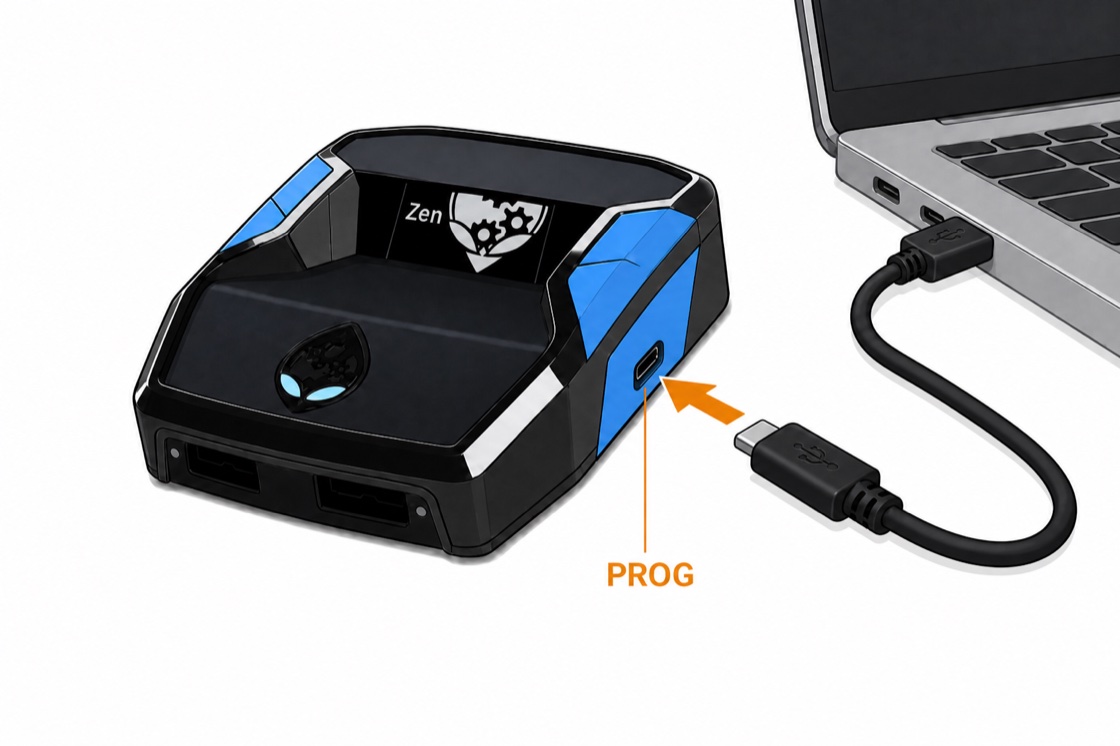
Plug your Cronus Zen into a computer using the PROG USB port (right side).
3
Open Zen Studio. When the Zen is detected, the GPC Library appears on the left. Your serial number shows in the bottom-right corner.
4
After installing a new version, go to Tools → Reset Zen Studio and confirm Yes to prevent conflicts from older files. This deletes all backups, settings, and stored files.
5
Disconnect the PROG USB cable. Keep the Zen connected to the PC for firmware update.
Device disconnected?
If Zen Studio shows “Device Not Connected,” the issue is typically a faulty or low-quality USB cable. Try a different cable.
Step 2: Update Firmware
Always update to the latest firmware before using your Zen.
1
Press and hold the blue reset button on the bottom of the Zen.
2
While holding it, plug the Zen into your PC using the CONSOLE/PC USB-C port (back).
3
The OLED screen displays “Zen Bootloader” — this confirms recovery mode.
4
In Zen Studio, navigate to Tools → Online Firmware Update, or visit firmware.modcentral.ca directly.
5
Click Connect, select Cronus ZEN, then click Connect again.
6
Click Latest. The firmware update completes in about 20 seconds.
Web update tool
You can also use the Cronus Web Update Tool in Chrome or Edge — works on Windows, macOS, and Android (USB OTG required).
Step 3: Controller Setup
Identify your controller type to choose the right setup method.
| Controller | USB | Bluetooth | Adapter |
|---|---|---|---|
| DualSense | Yes | Yes* | N/A |
| DualSense Edge | Yes | Yes* | N/A |
| DualShock 4 | Yes | Yes | N/A |
| Xbox (All models) | Yes | No | Yes** |
| Nintendo Switch (All) | No | Yes | N/A |
*Bluetooth does not support Adaptive Triggers, Rumbles, Gyroscope, or Mic. **Xbox wireless controllers require the Xbox Wireless Adapter.
Next steps
See Controller Setup for detailed USB and wireless instructions, or PlayStation 5 Setup for PS5-specific guides.